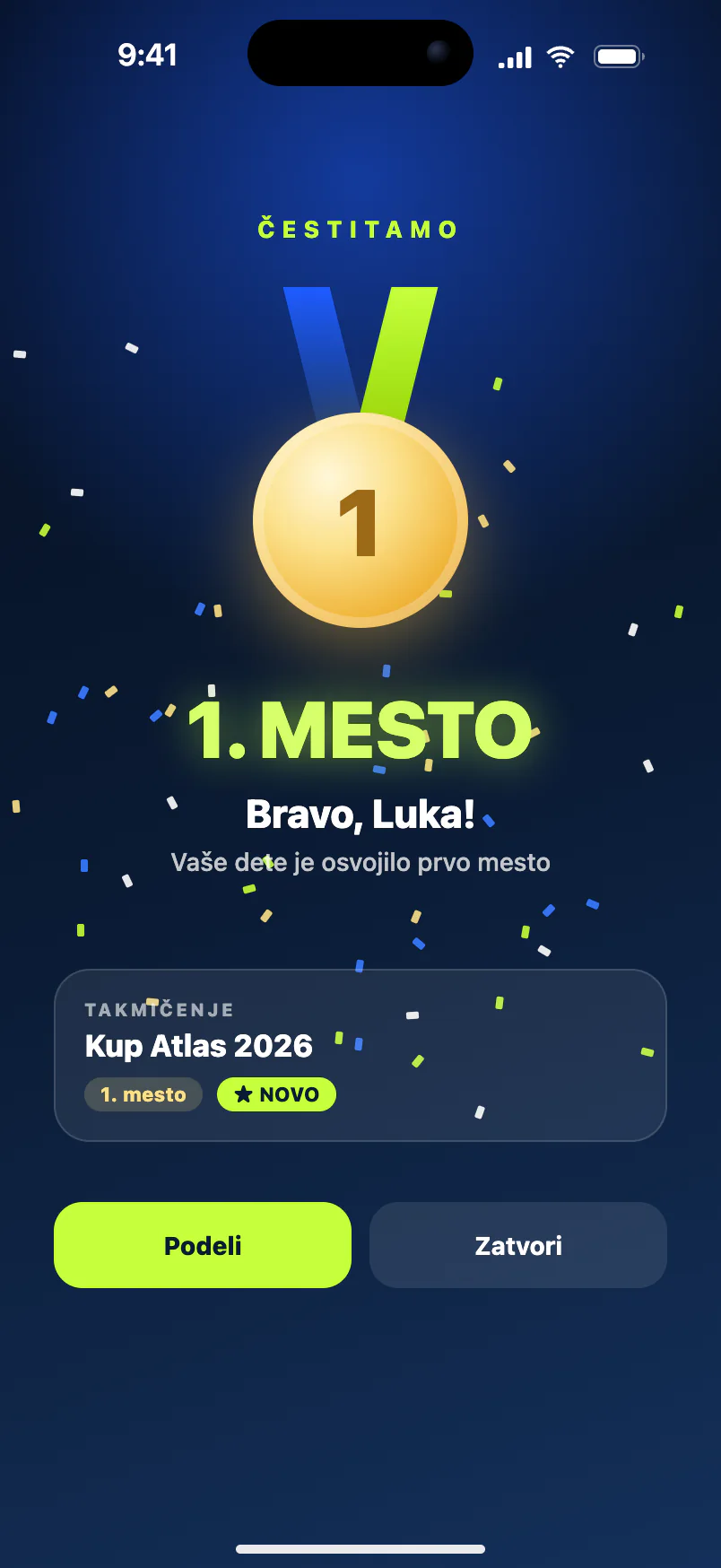
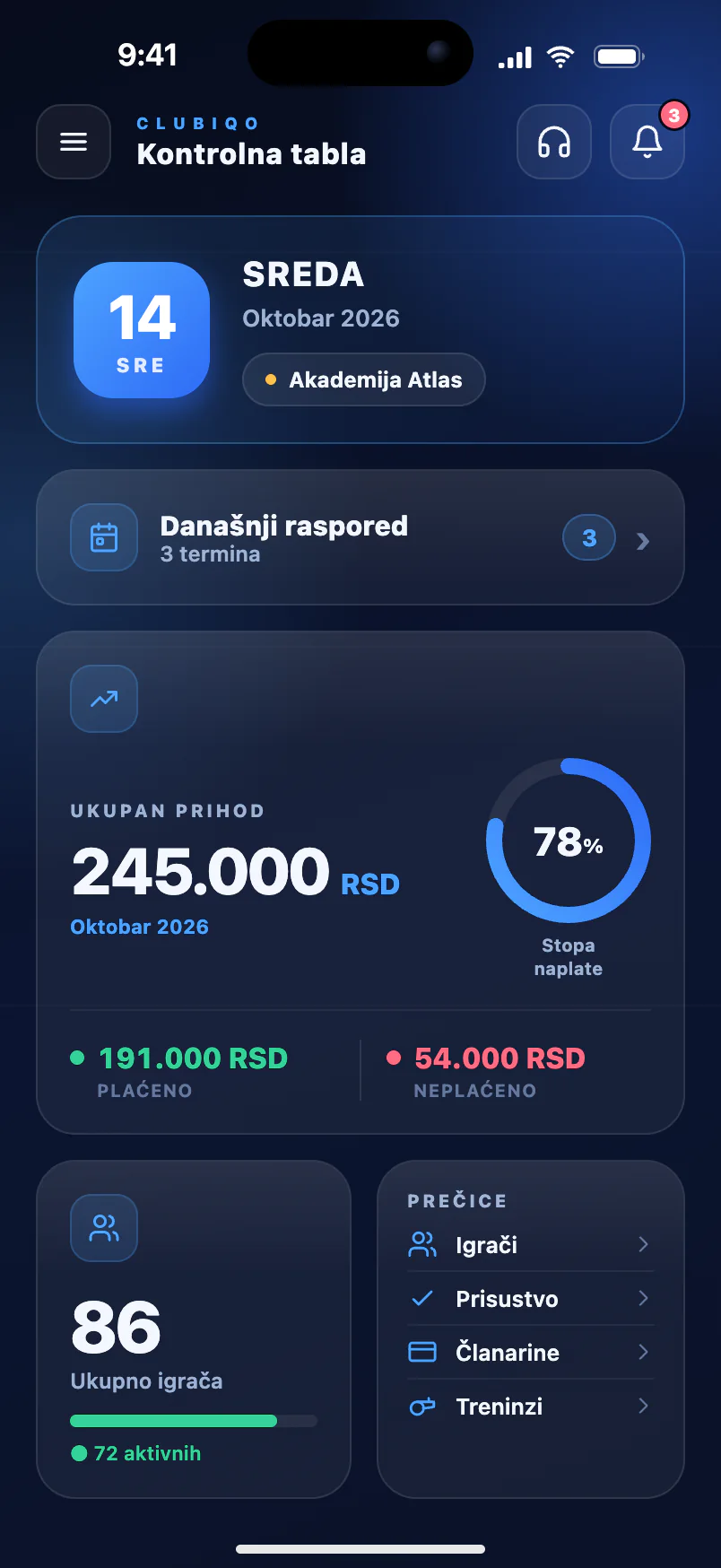
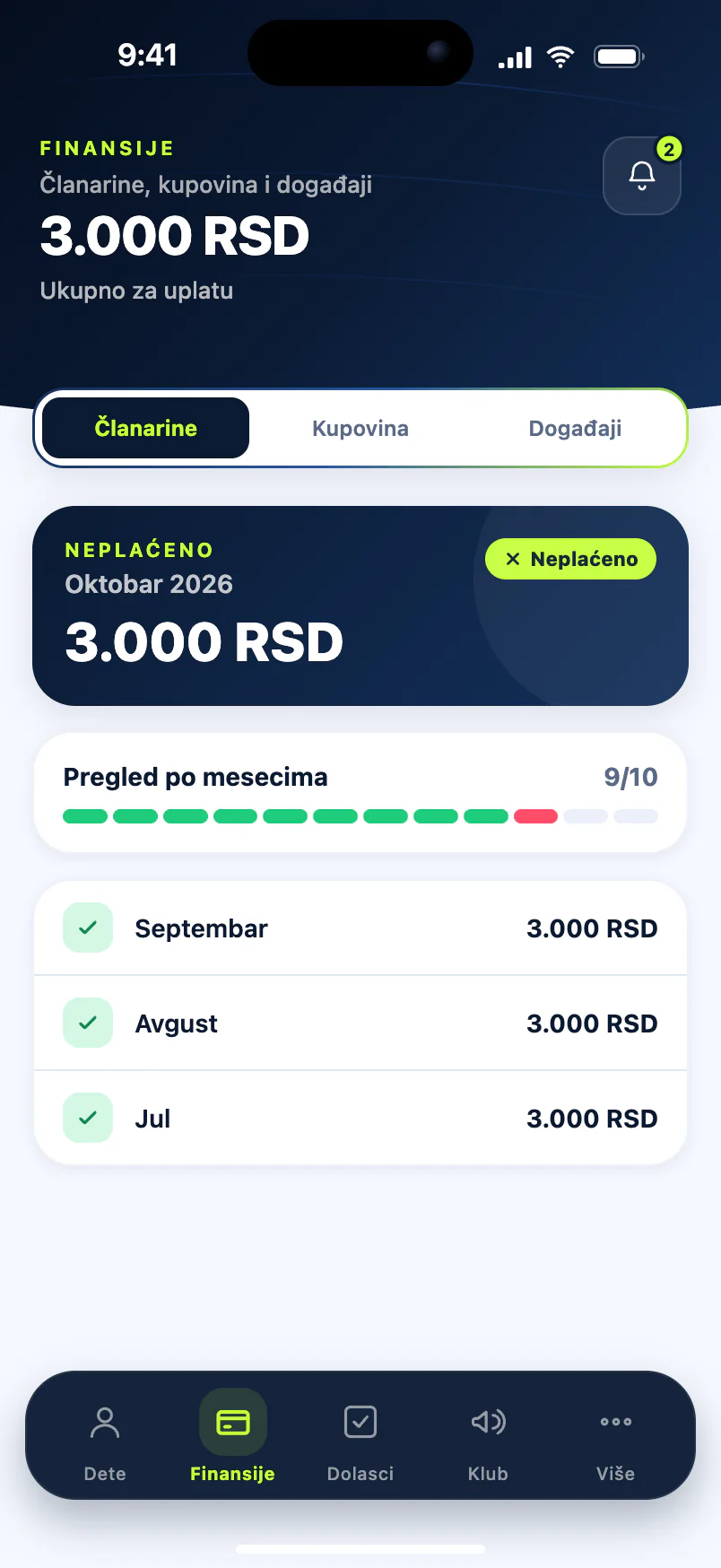
ONLINE REGISTRATION
Online club registration. The parent fills in the form.
Online club registration takes the dullest part of a new season off the coach's hands: copying names, dates of birth and phone numbers from paper forms. In the Clubiqo mobile app you generate a registration link and QR code, send it to a parent or let them scan the code on your phone, and they fill in their own details and their child's. As soon as they submit the form, the child is on the club's roster, the parent has an account in the app, and the club owner gets a notification to assign the new player a category.
-
Registration without paper
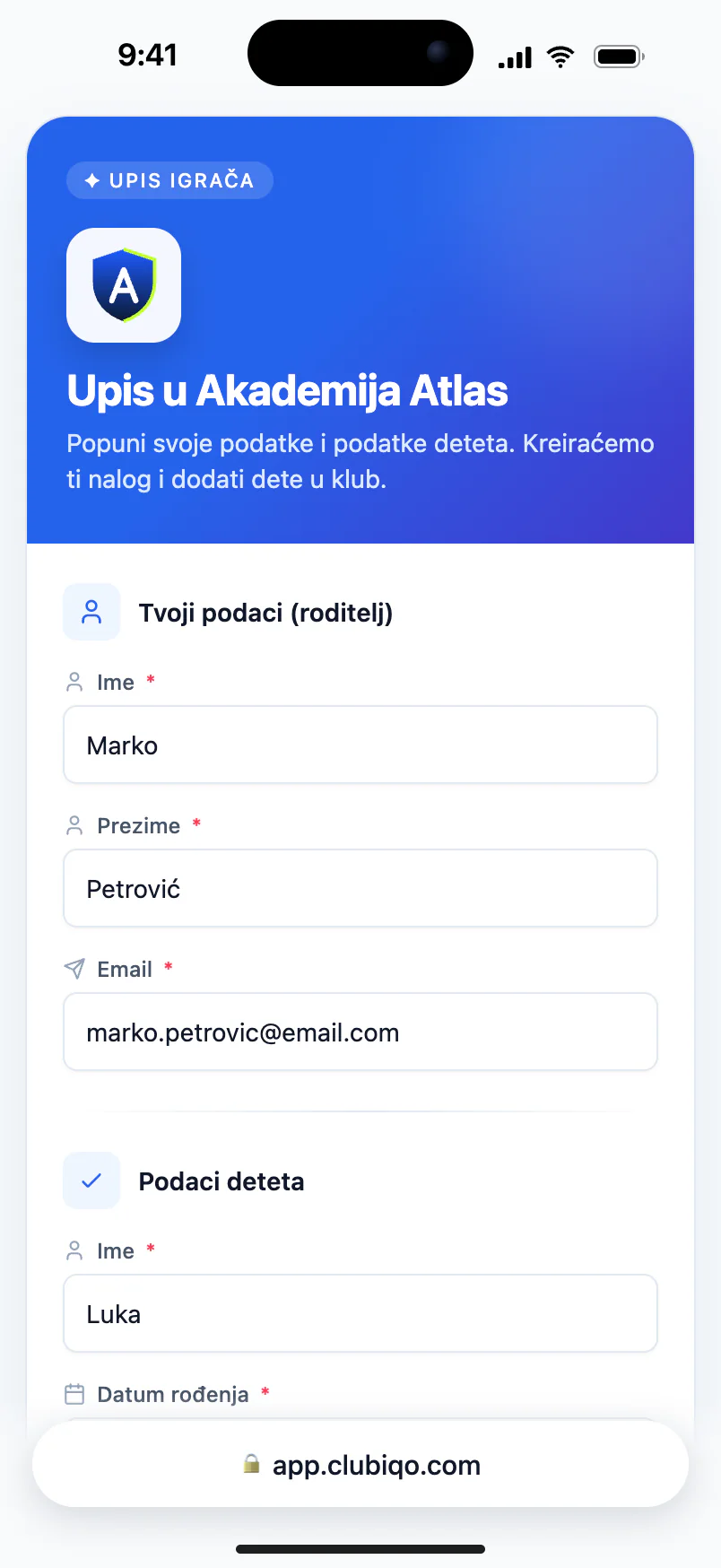
The parent fills in the form on their own phone: their details, the child's name and date of birth, and a note for the club.
-
A link or a QR code
Generated in the mobile app and shared by message, by email or straight from your phone's screen.
-
A parent account at once
Login details arrive by email, so from day one the parent sees attendance, fees and announcements.
-
Your existing roster from Excel
Players you already have are imported on the web dashboard from an .xlsx file, with no retyping.
How signing a child up by link works
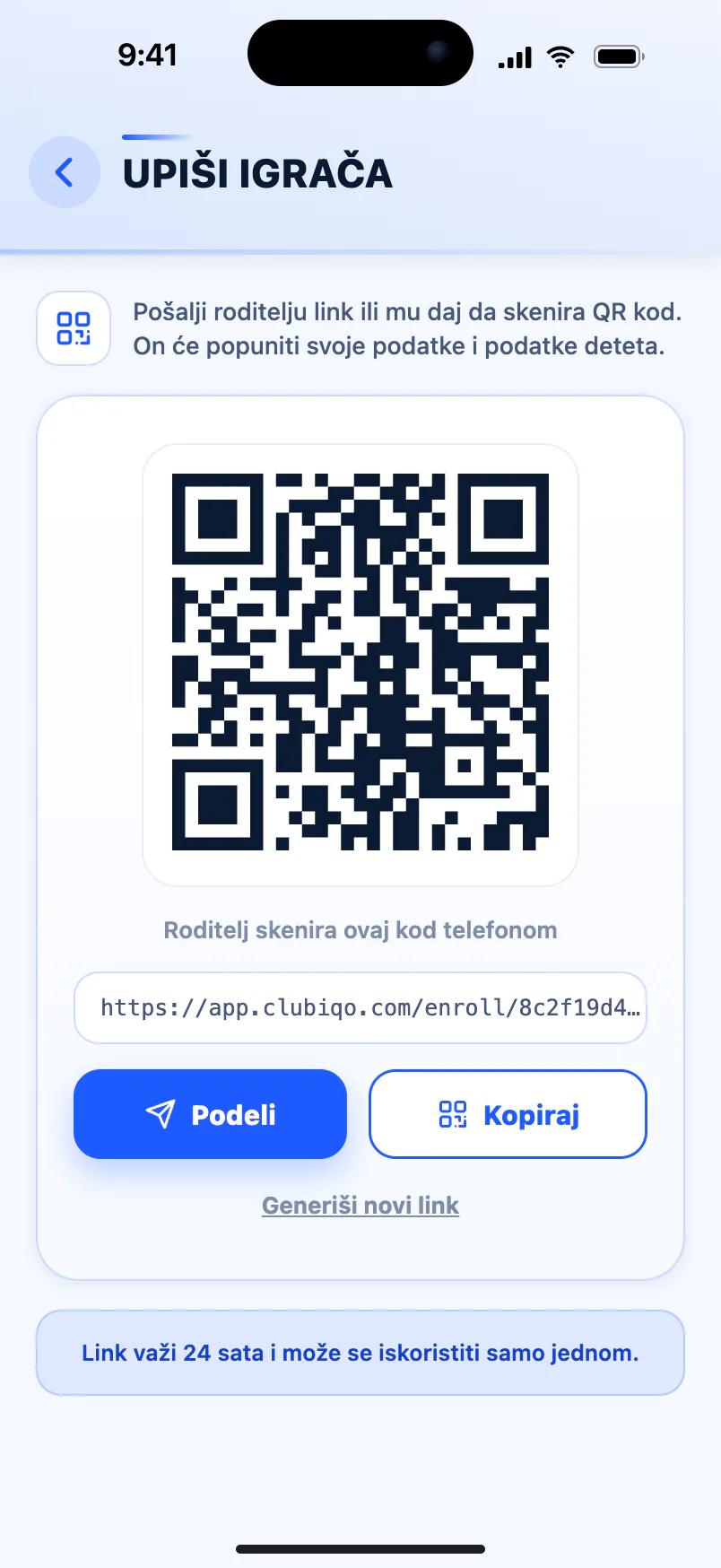
Registration starts in the mobile app, on the "Enroll player" screen. The app creates a link and a QR code; you send the link with Share or Copy, and the parent scans the QR code straight off your screen. One rule matters: the link is valid for 24 hours and can be used only once, so one link is one registration — one child. For the next family, or a second child from the same family, tap "Generate new link". That way a link forwarded to a group chat can't be used for dozens of sign-ups. Registration can be started by admins and by coaches with permission to add players.
- The "Enroll player" screen in the mobile app
- A link and QR code in a single tap
- Share or copy the link to send by message or email
- Valid for 24 hours and usable only once
- One link, one child; a new link for the next
- Started by admins and coaches allowed to add players
What the parent fills in on the registration form
The link opens a short form headed with your club's name. The parent enters their first name, surname and email, and a phone number if they wish. For the child, the form asks for first name, surname and date of birth, with the child's phone number and a note as options — that is where parents usually mention what the coach should know, from an allergy to a preferred session time. The form runs in the browser with no app to install, and there is no approval step: registration is complete once the parent submits. A parent who already has an account with that email confirms it with a six-digit code, and the new child is added to it.
- Parent: first name, surname and email; phone optional
- Child: first name, surname and date of birth
- Optional: the child's phone number and a note for the club
- Runs in the browser, with no app to install
- An existing parent account is linked with a six-digit code
- No manual approval — done when the parent submits
After registration: category, fees and a parent account
As soon as the parent submits, the child appears on the club's roster, but without a category yet. The club owner gets a notification that a new player has registered, and the player waits on the "Uncategorized" list, marked as registered via a link. When you assign a category, the app asks whether the membership should start this month — if the registration came in late in the month, you decide whether billing starts now or next month. Until then nothing is charged. Meanwhile the parent receives their login details by email for the parent app, where they follow attendance, fees and club announcements.
- The player is created at once, without a category
- A push to the club owner about the new player
- An "Uncategorized" list for new registrations
- No fee until a category is assigned
- Your choice: billing from this month or the next
- Link registrations respect your plan's player limit
Players you already have: import from Excel
Online registration is for new members. Players the club already has don't need to be entered one by one: on the web dashboard, the Excel player import walks you through four steps — upload the file, map the columns, review and confirm. You upload an .xlsx file of up to 10 MB, match its columns to the fields in the app and see warnings about possible duplicates before you confirm. Players are imported without parents, and the current month's fee is created for them straight away. We describe the whole switch step by step in how to digitise a sports club.
- Excel player import on the web dashboard
- An .xlsx file of up to 10 MB; the first sheet is read
- Name and surname in one column or two
- Date of birth, category, phone, address, town and postcode
- A default category and duplicate warnings
- Help with the import is free
Common questions
Can I put the registration QR code on a noticeboard or our website?
We don't recommend it, because it won't work the way you expect: the link and QR code are valid for 24 hours and can be used for one registration only. The first parent to use it registers their child, and everyone after them finds a used link. On a noticeboard or website, give the club's contact details instead, and generate a link for each family that gets in touch.
How do I run registrations at an open day?
The simplest way is for a coach or admin to keep a phone open on the "Enroll player" screen. The parent scans the QR code, fills in the form on their own phone and submits it, then you tap "Generate new link" for the next family. If several people from the club with permission to add players are there, each can register families from their own phone, and the queue moves faster.
Can I create a registration link on a computer?
No. The link and QR code are generated only in the mobile app, on the "Enroll player" screen — the web dashboard doesn't have this option. The parent opens the form itself in a browser, on a phone or a computer. What the web dashboard has instead is the Excel import for an existing roster, which is the better tool when you need to add a lot of players at once.
How do I register two children from the same family?
Each child needs a separate link, because one link covers one registration. Once the parent has registered the first child, generate a new link for the second. Since they already have an account with the same email, the parent confirms it with a six-digit code and the second child is added to the same account, so they follow both children in one app.
Is a new player charged a fee straight away?
No. A player registered via a link has no category, and players without a category aren't charged. When you assign one, the app asks whether the fee starts this month or next, so you decide what is fair for someone who joined late in the month. How charges and payments work from there is covered on the membership fee tracking page.
See also
- Parent app Parents see their child's attendance, fees and arrears, purchases, competition costs, progress and club announcements in their own app. Read more
- Membership fees Track and collect club membership fees: automatic monthly charges, payment history, receipts, parent reminders and SMS for adult members. Read more
- Medical checks Track athlete medical checks: expiry dates worked out for you, an "expiring soon" status 30 days ahead and parents submitting results. Free for 14 days. Read more
- Gymnastics club A gymnastics club app with progression levels (colours, Xcel, Levels 1–10), competitions and placings, add-on classes, fees and leotards. Free for 14 days. Read more
From the blog
- How to Start a Sports Club in Serbia: A Step-by-Step Guide (2026) Three founders, a statute and an application to the Business Registers Agency are the core — but one word in the name can send the application back. Here is the whole route, from the founding assembly to the first season. Read more
- How to Digitize a Sports Club in 2026 Spreadsheets, notebooks and WhatsApp groups work while a club is small. Here's how to go digital within a month — without chaos or two sets of records. Read more
Let parents fill in the registration form themselves
Free for 14 days, no credit card. Help importing your existing roster is free.
Start for free